These Surprising LinkedIn Features Can Grow Your Connections
30 min read Unlock underused LinkedIn features—Creator Mode, Newsletters, Collaborative Articles, and QR codes—to accelerate quality connections and visibility without spammy outreach. (0 Reviews)
Most people treat LinkedIn like a digital rolodex: send a few connection requests, drop a post now and then, and hope the graph grows. But LinkedIn hides powerful, underused features designed to help you earn attention and turn relevant strangers into warm relationships. Below is a practical, deeply tactical guide to those surprising capabilities—complete with examples, steps, and ways to measure whether they’re actually helping you grow.
Turn On Creator Mode (Strategically) To Widen Your Funnel
Creator Mode is more than a toggle. It reconfigures your profile to help you attract followers, not just 1:1 connections, and unlocks features that amplify discovery.
What flips when you enable it:
- Your profile’s primary action becomes Follow (Connect is still available under the More menu).
- You can add up to five “Talks about” topics as hashtags under your headline (e.g., #fintech, #dataprivacy, #b2bmarketing). These help people understand your focus at a glance and aid discovery.
- You gain access to advanced analytics, newsletters, LinkedIn Live, Audio Events, and other creator tools.
- A prominent link appears in your top card. Use it as a call-to-action (e.g., calendar booking, resource page, portfolio), with custom anchor text.
How to set it up well:
- Choose narrow “Talks about” topics. Instead of #marketing (too broad), consider #b2bcontent or #sasemarketing. Precision wins.
- Add a top-card link with a clear, benefit-first label such as “Get the SaaS Pricing Guide” or “Book a 15‑min intro.” Track clicks with UTM parameters to know how many visits your profile drives.
- Pin proof in the Featured section (more on this below) so the profile’s top half tells a single story: who you help, how you help, and where to click.
Example: A fractional CFO adds #cashflow, #pricingstrategy, #revopsfinance, links to a Calendly page labeled “Free 15‑min Finance Triage,” and features a 5‑slide carousel that explains a quick win (e.g., a cash conversion cycle checklist). Result: a profile that converts casual viewers into informed followers and qualified calls.
Pro tip: If you do a lot of 1:1 outreach (e.g., recruiting, partnerships), test whether switching the primary action from Follow back to Connect (by turning off Creator Mode) helps your acceptance rate. You can A/B test this for two weeks each and compare outcomes.
Use the Featured Section as a Connection Magnet

The Featured section isn’t just a gallery. It’s a conversion surface. Treat it like a landing page above the fold.
What to feature:
- A lead magnet or resource (PDF or article) specifically for your ideal audience. Carousels (PDFs) perform well because they invite taps.
- A calendar link with social proof in the title (e.g., “Book a GTM teardown: 200+ founders served”).
- A short case study post showing measurable outcomes (e.g., “Cut onboarding time 37% in 60 days—here’s the playbook”).
- Your best-performing native post that generated high‑quality discussion; pinning it gives visitors an easy place to engage.
How to make it work:
- Write benefit-forward titles and descriptions. “SaaS Pricing Calculator (Free)” beats “Calculator link.”
- Add UTM parameters (e.g., utm_source=linkedin_profile&utm_medium=featured) to links so you know which items drive action.
- Reorder featured items so your primary CTA sits first. Revisit monthly based on click data.
A mini‑playbook:
- Create a 7–10 slide PDF carousel that solves a small, expensive problem (e.g., “5 prompts to rewrite your sales emails for 20% more replies”).
- Post it natively; then add that post to Featured. In the post’s comments, include the deeper resource link.
- Track conversions from the PDF comments vs. the Featured link; keep whichever converts best.
The Bell: Turn Passive Viewers into Repeat Engagers

The “bell” on your profile lets people opt into notifications when you post. It’s easy to ignore—until you start asking for it.
Ways to earn bell taps respectfully:
- Add a one‑line micro‑CTA to your About section: “If you like deep dives on #dataprivacy, tap the bell on my profile to get them first.”
- When a post outperforms, add a top comment: “If you want more breakdowns like this, tap the bell on my profile so you don’t miss the next one.”
- During webinars or lives, show a slide that literally displays the bell icon and explains the value of following you.
Quality control: The bell is a promise. If you ask for it and then post off‑topic or low‑value content, you’ll lose trust fast. Keep a consistent cadence (e.g., 2–3 substantive posts weekly). Track: After adding a bell CTA, check your Analytics > Followers for spikes in follows and correlate with posts.
Win Visibility via Collaborative Articles (and Earn Topic Badges)
Collaborative Articles are LinkedIn’s AI‑assisted prompts that invite member contributions. When you “Add your perspective” with a helpful, example‑rich answer, you can gain outsized visibility among people who follow that topic—and sometimes earn a topical badge on your profile if your contributions are consistently rated helpful.
How to work the system (ethically):
- Find prompts relevant to your niche. Search for “collaborative article” plus your topic, or watch the home feed for “Add your perspective” banners.
- Write from firsthand experience. Include a mini‑case, metric, or step‑by‑step. Answers that read like field notes beat vague platitudes.
- Reference tools, frameworks, or pitfalls by name. Specificity signals expertise.
- Reply early. The first wave of high‑quality contributions tends to gather the most views and reactions, which boosts discovery.
Example: A privacy consultant adds a 180‑word note under “How should startups approach data retention?” including a 3‑step flow and a 90‑day review cadence. They then connect with commenters who asked follow‑ups.
Impact to watch: Profile views, follows, and invitation acceptance rates often rise after several strong contributions in a focused niche.
Launch a LinkedIn Newsletter for Opt‑In Distribution

Newsletters on LinkedIn give you an owned channel inside the platform. Subscribers get notified when you publish, and your archive becomes a searchable asset tied to your profile.
Setup:
- Access: With Creator Mode on, click “Write article,” then choose “Create a newsletter.” Name it, set a cadence (weekly/biweekly), and add a clear value proposition.
- On launch: LinkedIn prompts your network to subscribe and makes the Subscribe button prominent on your profile.
- Format: Keep a consistent series format—e.g., “Pipeline Patterns #12: The 3‑Call Discovery Framework.”
Growth ideas:
- End every article with a simple CTA to comment, and connect with the first 20 commenters to keep the flywheel moving.
- Repurpose: Turn each article into a 6–8 slide carousel and a short text post linking back to the newsletter issue.
- Add a visible “Start here” issue that introduces who you help, the problem you solve, and the next action (book a call, get a resource, join an event).
Measure: Track subscriber growth, open and read indicators inside LinkedIn’s analytics, and downstream actions via UTM links.
Events, Live, and Audio: Network With Attendees at Scale
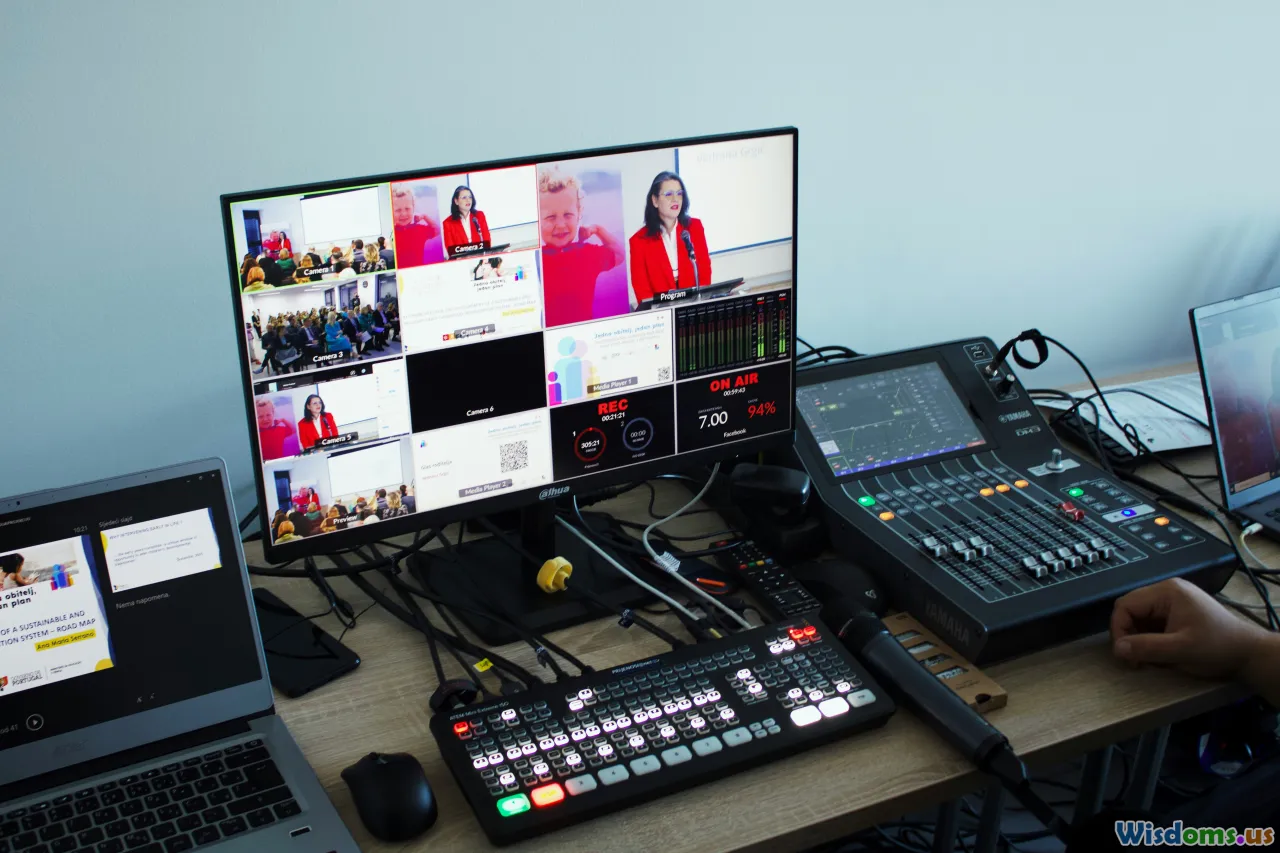
LinkedIn Events (including Live and Audio) are discovery engines that also enable warm outreach.
How to host for connection growth:
- Create an event with a concrete, job‑to‑be‑done title: “Triage Your SOC 2 Readiness in 30 Minutes.”
- Add co‑hosts (partners, clients, or community leads) who can invite their networks.
- In the event description, set expectations and list a tangible takeaway. Add a link to a resource you’ll share live.
- Warm attendees beforehand. Share a short post tagging co‑hosts, and ask a question attendees can answer in comments.
- During the session, spotlight attendees via Q&A. Afterward, post the replay link on the event page and in a profile post.
Connection flywheel:
- Before the event, send short, non‑pitchy connection notes to registrants: “Saw you registered for our RevOps AMA—curious which question you hope we cover?”
- After the event, follow up with a link to the promised resource and a question to continue the dialogue.
If you’re attending (not hosting), use the Attendees list to send context‑rich connection requests: “We both joined the ‘AI in Healthcare’ session—would love to compare notes on data labeling challenges.”
Advanced People Search: Boolean + “Connections of” = Warm Intros

LinkedIn’s people search becomes far more precise when you combine Boolean operators with advanced filters.
Boolean basics:
- Quotes for exact phrases: "VP Marketing"
- AND, OR, NOT to include/exclude: founder AND ("supply chain" OR logistics) NOT recruiter
- Parentheses to group logic: ("customer success" OR CSM) AND SaaS
Example query:
- "Head of RevOps" AND (SaaS OR "software") AND (Series A OR "Series B")
Then layer filters:
- Locations, Industries, Current company, Past company, School, and—most powerfully—Connections of.
“Connections of” turns outreach into a warm path. Choose a trusted mutual and filter to people connected to them. When you reach out, mention the authentic tie: “I loved your panel with Priya Shah (we worked together at Nimbus). Your point about win‑loss interviews stuck with me—open to connecting?”
Tips:
- Avoid pushing a pitch into the first note. Earn the conversation.
- Track acceptance rates by query/filter combo in a simple spreadsheet for two weeks; double down on the patterns that yield 40%+ acceptance.
Tap the Alumni Tool to Leverage Built‑In Trust

Shared alma maters grease the wheels of connection. Use the Alumni tab on your school’s LinkedIn Page to find people by location, employer, role, and skills.
How‑to:
- Search your university’s Page, click Alumni.
- Use the horizontal filters to narrow by “Where they work,” “What they do,” and “What they studied.”
- Scroll the grid and craft 1‑to‑1 notes that reference a specific tie: “Fellow Northeastern alum here (’16, MIS). I’m mapping data governance roles in healthcare—would love to connect.”
Bonus: If your school runs a LinkedIn Group, join it. Even though group messaging privileges have tightened over the years, group membership still creates context that can lift acceptance rates.
Turn On “Open to: Providing Services” and Build a Services Page
If you’re a freelancer, consultant, or agency, enabling “Providing services” adds a Services module to your profile and makes you discoverable for those offerings.
Setup checklist:
- Click “Open to” on your profile > “Providing services.”
- Choose clear categories (e.g., “B2B content writing,” “Revenue operations,” “Data visualization”). Avoid catch‑alls.
- Specify your work location (remote/local) and a short description with your best use cases and outcomes.
- Invite past clients to leave reviews. These appear on your Services page and function as social proof.
Usage tips:
- In relevant posts, add a P.S.: “If you need help implementing this, my Services page has details.”
- Link to your Services page from the top‑card link or Featured section.
- Respond quickly to project inquiries—LinkedIn captures buyer momentum in the moment they click.
Use the Mobile QR Code for Frictionless IRL Connections
At events, the fastest path from handshake to connection is LinkedIn’s built‑in QR code.
How to find it:
- In the mobile app, tap the search bar and then the small QR icon. Your code appears with options to scan others.
Tactical uses:
- Print the code on a small card or the back of your conference badge.
- Add it to the final slide of a talk with “Scan to connect and get the deck.”
- Save your code image in your phone’s widget so it’s one swipe away.
Pro tip: Pair the QR experience with a short note template. After connecting, send: “Great to meet at DataSummit—here’s the dashboard audit checklist I mentioned.” Attach the resource for immediate value.
Profile Video and Name Pronunciation: 15 Seconds of Trust

Two small profile features can humanize you instantly:
- Profile video: Add a short intro video to your profile photo on mobile. Use it to say who you help and invite a next action.
- Name pronunciation: Record a 10‑second audio clip so people know how to say your name. Bonus: add a quick context line—“I help post‑Series‑A teams clean their data pipelines.” Keep it useful, not salesy.
Script idea for your profile video:
- “Hi, I’m Dana. I help B2B product teams cut churn with better onboarding. My best posts break down real user interviews. If that’s helpful, follow me or grab my onboarding teardown checklist in Featured.”
These touches lift reply and acceptance rates because they reduce uncertainty about who you are.
Polls and Comment Prompts: Build Permission to Follow Up

Used well, polls and strong comment prompts are networking tools—not gimmicks.
High‑signal poll example for RevOps leaders:
- Question: “Which handoff breaks most often?”
- Options: “MQL → SDR,” “SDR → AE,” “Closed Won → CS,” “Other (comment).”
- Follow‑up: In the comments, invite examples and share a 1‑page handoff checklist.
Why this helps connections:
- You can see who voted on your poll (for your own poll). Use that as permission to connect: “Saw you voted ‘SDR → AE’ on my handoff poll—happy to trade templates if useful.”
- Commenters are warm—acknowledge specifics in your connection note.
Guardrails:
- Don’t DM everyone who interacts. Choose those whose titles match your goals and add value first.
- Space follow‑ups over several days to avoid bursts that look spammy.
Page Admin Perks: Invite Credits and Employee Notifications

If you manage a Company Page, you have two underused levers for connection‑adjacent growth.
Invite credits:
- Page admins receive a monthly pool of credits to invite their personal 1st‑degree connections to follow the Page. When someone accepts, that credit is often returned—so target carefully with relevant connections.
- Strategy: Batch invites by theme. One month, invite your customer success peers to follow a CS series; next month, invite product leaders ahead of a feature launch.
Notify employees:
- Use “Notify employees” on key Page posts (sparingly) to prompt internal engagement. Early, authentic employee reactions can kickstart reach into second‑degree networks, which in turn surface your personal profile in more feeds.
Tie‑in to your profile:
- When a Page post performs, reshare with context from your personal account and invite thoughtful comments. Then connect with high‑quality commenters who aren’t already 1st‑degree connections.
Skill Assessments and Endorsements: Appear in More Searches

The Skills section influences who finds you and whether they connect.
Actions that move the needle:
- Take relevant Skill Assessments. Passing adds a verified badge next to that skill on your profile, which can improve trust and visibility in search results.
- Curate your top three skills to match the work you want next. If you’re pivoting to product analytics, lead with that—not a legacy skill from three jobs ago.
- Invite endorsements from people who have seen you use the skill in context. Prompt with specifics: “Would you endorse me for SQL and A/B testing based on our checkout experiment work?”
Bonus: Ask for one strong Recommendation that names a measurable outcome. That single paragraph can lift invite acceptances because it reduces perceived risk.
Use Audience Analytics to Guide Outreach
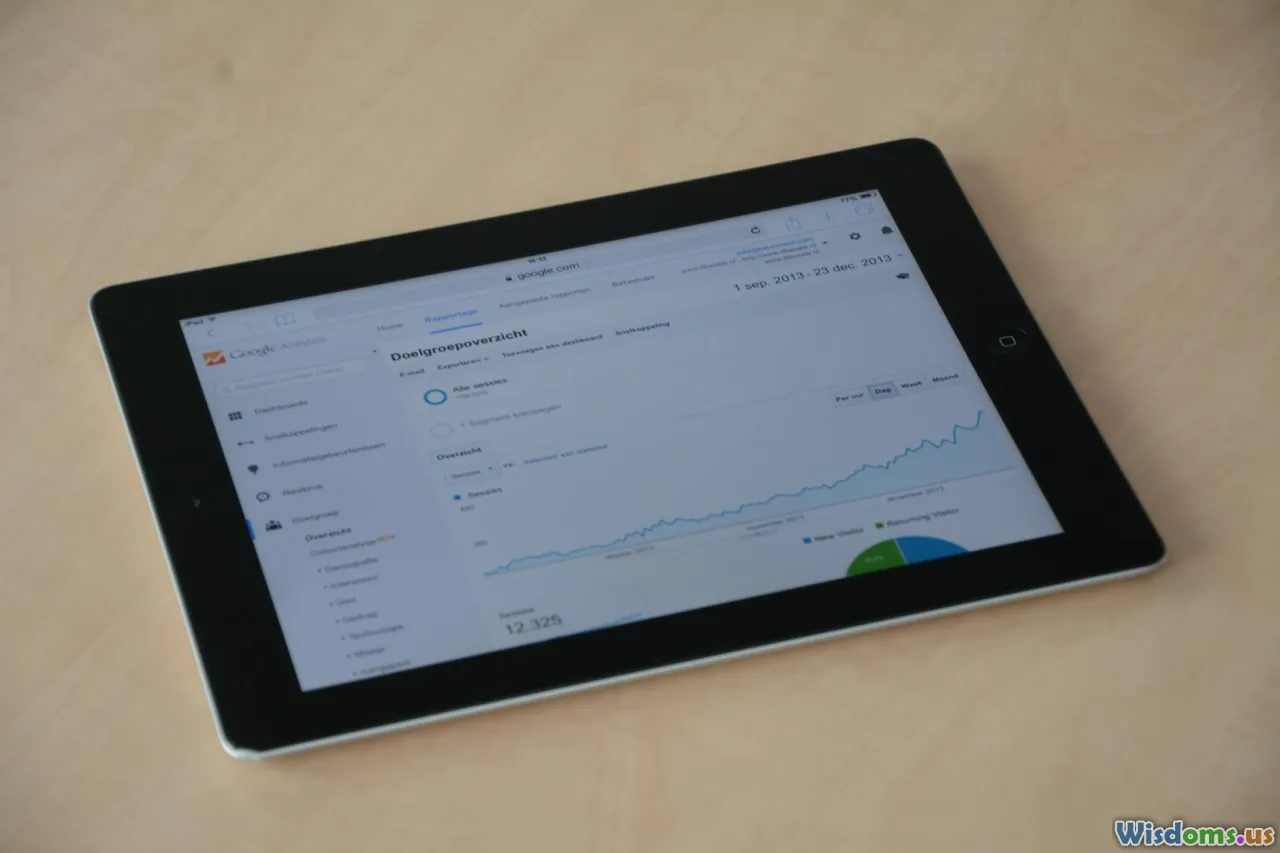
If you’re posting regularly, your Creator Analytics show who engages with your content: job titles, industries, seniority, and top companies.
How to turn this into connections:
- Open Analytics > Audience. Export or note the top 10 job titles and companies.
- Build a mini‑list: 25 people at those companies who match your ICP (ideal contact profile).
- Engage before connecting: Thoughtful comments on their posts; then send a short invite referencing a specific point you reacted to.
- Close the loop: Post a follow‑up thread addressing a common question from that cohort and tag it with your “Talks about” topics.
Measure: Track the percentage of new followers vs. new connections weekly. If you see a spike in non‑follower impressions but flat connections, tweak your invites and CTAs.
Personalize Connection Notes With Context That Travels

LinkedIn lets you add a short note when you request to connect. Use the 300 characters to prove you’re human and relevant.
Simple structure:
- Line 1: Name + context.
- Line 2: A specific, non‑generic reason to connect.
- Line 3: Low‑pressure close.
Templates to steal:
- Event context: “Hi Maya—loved your question on the GTM panel about PLG handoffs. I sketched a quick map after—happy to swap notes if helpful. Open to connecting?”
- Mutual connection: “Hi Omar—Priya Shah and I worked together at Nimbus; I appreciated your take on buyer committees on her post. Would love to connect.”
- Resource offer: “Hey Lucia—your post on SOC 2 got me thinking. I have a 10‑point readiness checklist; if you want it, I’ll send after we connect.”
- Alumni angle: “Hi Dev—fellow UBC alum in RevOps here. I’m curating a playbook on usage‑based pricing experiments; would enjoy learning from your experiences. Connect?”
Checklist:
- Skip filler (“I’d like to add you to my network”).
- Don’t pitch. Earn the right later.
- Mirror their language when possible; it shows you listened.
Hashtag Micro‑Communities: Follow, Engage, Be Early

Hashtags still help with topical discovery—if you treat them as communities rather than decoration.
How to use them well:
- Follow 10–20 niche hashtags where your audience actually hangs out (e.g., #revops, #productledgrowth, #dataprivacybydesign). Avoid overly broad tags (#business, #success) that attract noise.
- Check the “Recent” tab for those tags 10 minutes a day. Leave comments that add missing examples, data points, or pitfalls.
- In your own posts, use 3–5 precise hashtags. Put the primary one in the first three lines if it reads naturally.
Example: If you consult on healthcare AI, follow #healthdata, #hl7, #clinicalnlp, #fhir. Comment on case studies with a privacy caveat they missed and invite respectful debate. Then connect with the author and top commenters with a note referencing that specific thread.
A Simple Cadence That Compounds

Consistency—not volume—compounds your network.
Try a 30‑minute daily block:
- 8 minutes: Comment thoughtfully on 4–5 posts under your followed hashtags or from your target audience list.
- 7 minutes: Process notifications (replies, mentions). Convert the best interactions into connection requests with personal notes.
- 10 minutes: Draft a micro‑post or a two‑slide carousel for the next day.
- 5 minutes: Review Analytics > Audience for any new titles/companies appearing; add 2 people to your mini‑list.
Weekly add‑ons:
- One collaborative article contribution.
- One event RSVP or a 20‑minute co‑hosted audio chat.
- Rotate your Featured items based on click data.
The goal is to create predictable touchpoints where discovery, engagement, and outreach reinforce each other without burning you out.
Put It All Together: A 14‑Day Experiment Plan

Run this sprint to prove these features can grow your connections with quality, not spam.
Day 1–2: Foundation
- Turn on Creator Mode. Add five precise “Talks about” topics.
- Set a top‑card link with a benefit‑driven label and UTM.
- Build/refresh your Featured section with one carousel, one resource, and one CTA.
Day 3–5: Discovery
- Follow 15 niche hashtags and comment daily.
- Contribute to two collaborative articles with example‑rich notes.
- Use Boolean search + “Connections of” to identify 20 ideal people; send 10 personalized invites.
Day 6–8: Events & Services
- Create a small audio event (20–30 minutes) on a very specific topic; invite a co‑host.
- Turn on “Providing services” and request two client reviews.
- Add a one‑line bell CTA to your About section.
Day 9–11: Newsletter & Analytics
- Launch a simple newsletter with a series format.
- Review Audience analytics; build a 25‑person mini‑list from top companies/titles.
- Connect with 10 warm commenters or poll voters from the week.
Day 12–14: IRL + Fine‑Tuning
- Use your QR code at any in‑person meetup or virtual slide.
- Record a short profile video and name pronunciation.
- Iterate: reorder Featured based on clicks; refine hashtags; prune any off‑topic posts.
Metrics to watch:
- Connection acceptance rate (target 35–50% with strong context).
- Profile views and follower growth (should trend up during the sprint).
- Click‑through to your top‑card link and Featured items (use UTM data).
- Replies to first messages (a proxy for the quality of your approach).
A month later, you’ll likely find that the same hour a day produces better relationships, more targeted connections, and more conversations that move somewhere meaningful.
The difference isn’t magic. You simply arranged LinkedIn’s lesser‑known features so that the right people can find, understand, and trust you—then gave them a low‑friction way to say yes.
Career Development Networking Personal Branding Social Media Marketing Professional Networking LinkedIn Tips organic growth Personal Branding & Networking LinkedIn Strategy Creator Mode LinkedIn Newsletter Collaborative Articles Service Pages Profile QR Code Bell Notifications Alumni Tool B2B Lead Generation
Rate the Post
User Reviews
Other posts in Personal Branding





Popular Posts