Practical Guide to Upgrading Your Home WiFi
37 min read Step-by-step playbook to upgrade home WiFi: assess coverage, choose routers or mesh, optimize placement, channels, and security, with budget options, real-world examples, and speed-boosting tips. (0 Reviews)
A laggy Zoom call in the living room. A buffering movie in the bedroom. Smart lights that sometimes listen and sometimes don’t. If your home WiFi feels like a fickle roommate, you’re not alone—and you don’t have to throw money at random gadgets to fix it. With a clear plan, a few strategic upgrades, and smart configuration, you can turn your wireless network into a fast, stable, and secure backbone for every device in your home.
This practical guide walks you through assessing your current setup, choosing the right equipment, planning your layout, and optimizing settings for real-world results. Whether you live in a one-bedroom apartment or a multi-story house with thick walls and an army of smart devices, you’ll find steps, examples, and tips tailored to your situation.
Assess Your Current WiFi Performance and Pain Points

Before buying anything, measure. You need baseline data to pick the right upgrade and to verify improvements later.
What to measure:
- Speed: Both download and upload. Note speeds on WiFi and via wired Ethernet (to isolate ISP vs WiFi bottlenecks).
- Latency and jitter: Ping a stable host (e.g., 1.1.1.1) and watch for spikes. Jitter under 30 ms is generally acceptable for video calls; under 10 ms is great.
- Coverage: Identify dead zones and weak signal areas. Aim for at least -65 dBm signal strength for reliable HD streaming and calls; -55 dBm is better for high throughput.
- Consistency: Run tests at multiple times (evening vs midday) to account for neighbor interference and ISP congestion.
Tools you can use (mostly free):
- Speed tests: Ookla Speedtest, Fast.com, or Speedtest CLI.
- Local throughput: iPerf3 between a wired computer and a WiFi device eliminates ISP variability.
- Signal mapping: WiFiman (iOS/Android), Airport Utility Wi-Fi scanner (iOS), NetSpot (Mac/Windows), or WiFi Analyzer (Android).
How to test effectively:
- Connect one computer via Ethernet to your router. This becomes your iPerf3 server: iperf3 -s
- On your WiFi device (phone/laptop), run a client test: iperf3 -c <wired_server_ip> -t 30 -R to measure downlink; remove -R for uplink.
- Test in at least five locations: near the router, far corners, upstairs/downstairs, and any problem areas.
- Record results in a simple note with time, signal strength (dBm), and throughput. This becomes your pre-upgrade baseline.
Interpretation examples:
- Great near the router but bad two rooms away? Likely attenuation from walls/floors—mesh or additional access points (APs) with wired backhaul could help.
- Good signal but poor speed? Could be interference (crowded channel), poor client radios, legacy settings, or router CPU saturation.
- Fine on Ethernet but slow on WiFi everywhere? Your router or wireless design is the bottleneck.
Choose the Right Upgrade Path for Your Home
There isn’t one best solution; the right upgrade depends on your space, construction, client mix, and budget. Here are the common paths and when they shine.
- One high-quality router (single point)
- Best for: Small apartments or studios (under ~1,000–1,200 sq ft) with minimal obstructions.
- Pros: Simple, cost-effective. Easy to manage.
- Cons: Coverage and throughput drop quickly across walls/floors; placing it centrally is crucial.
- Mesh WiFi (wireless backhaul)
- Best for: Medium homes with difficult cable runs, or renters who can’t pull Ethernet.
- Pros: Seamless roaming; quick to deploy. Two to three nodes can cover 1,500–4,000 sq ft.
- Cons: Wireless backhaul shares spectrum with clients unless the system has a dedicated backhaul radio; performance depends heavily on node placement and line-of-sight.
- Router + wired access points (Ethernet or MoCA backhaul)
- Best for: Multi-story homes, dense construction (brick, concrete), or high device density (smart homes, families with gamers and remote workers).
- Pros: Highest performance and reliability. Each AP has a dedicated wired backhaul, so WiFi airspace is reserved for clients.
- Cons: Requires pulling Ethernet or using coax with MoCA. Slightly more complex management, though many ecosystems offer centralized control.
- Range extenders/repeaters (avoid if possible)
- Best for: Temporary fixes only.
- Cons: They often halve throughput and create roaming headaches; they’re better than nothing but worse than mesh or wired APs.
Scenario snapshots:
- Apartment: A single Wi‑Fi 6/6E router placed in the living space (not a closet) often suffices.
- Two-story home: Mesh with tri-band and optional wired backhaul, or one router plus an upstairs AP.
- Long, narrow townhouse: Two APs placed midpoints on each floor via Ethernet/MoCA backhaul.
Understand Wi‑Fi Standards, Bands, and Features that Matter

Standards and bands shape your upgrade’s ceiling.
- Wi‑Fi 5 (802.11ac): 5 GHz only; introduced MU‑MIMO (downlink). Still decent for many homes but aging.
- Wi‑Fi 6 (802.11ax): Adds OFDMA for better multi-device efficiency, uplink MU‑MIMO, BSS coloring to reduce co-channel interference, and improved power efficiency (TWT). Available on 2.4 and 5 GHz.
- Wi‑Fi 6E: Extends Wi‑Fi 6 features into the 6 GHz band (5.925–7.125 GHz in the US; availability varies by country) with more spectrum and cleaner air.
- Wi‑Fi 7 (802.11be): Introduces 320 MHz channels (in 6 GHz), multi-link operation (MLO) to aggregate links across bands, improved QAM, and lower latency. Early but maturing quickly.
Bands and their trade-offs:
- 2.4 GHz: Long range, penetrates walls, but crowded and slow; ideal for IoT sensors and older devices. Use 20 MHz channel width and stick to channels 1/6/11 to avoid overlap.
- 5 GHz: Middle ground for capacity and range; most home clients use it for high throughput. 80 MHz channels are a good default; 160 MHz can shine if you have clean spectrum and Wi‑Fi 6/7 clients.
- 6 GHz (Wi‑Fi 6E/7): Clean spectrum and low latency, but shorter range and more attenuated by walls. Best for same-room or adjacent-room high-speed devices and for congestion relief.
Key features to look for:
- OFDMA and MU‑MIMO: Improve performance with many devices by scheduling traffic efficiently.
- 160/320 MHz channels: Boost peak throughput in clean spectrum; check client support.
- 802.11k/v/r: Helps clients roam quickly between nodes/APs.
- WPA3: Modern security; some legacy devices may need WPA2/WPA3 mixed mode.
- DFS channels (in 5 GHz): Often less crowded; routers must vacate if radar is detected. Consider your environment (near airports or weather radar?) before relying on DFS.
Rule of thumb: Don’t chase theoretical max speeds. Real-world performance depends more on spectrum cleanliness, placement, and backhaul than the highest QAM number on the box.
Plan Your Network Topology and Cabling

A little topology planning prevents most WiFi woes.
Core components:
- ISP modem/ONT: Converts your provider’s signal to Ethernet. Cable users may have a DOCSIS modem; fiber typically uses an ONT.
- Router/gateway: Handles NAT, firewall, DHCP, and QoS.
- Switch (optional): Expands Ethernet ports; consider a 2.5G or multi-gig switch if you have fast WAN or wired backhaul needs.
- Access points/mesh nodes: Provide WiFi coverage.
Backhaul options in order of preference:
- Ethernet (Cat6/Cat6A): Gold standard. Run to central or strategic points on each floor. Cat6 supports 10 Gbps up to 55 m, 1 Gbps up to 100 m; Cat6A supports 10 Gbps to 100 m.
- MoCA 2.5 over coax: Excellent in homes with coax drops; up to ~2.5 Gbps shared throughput with low latency.
- Powerline (HomePlug AV2): Last resort; performance varies dramatically based on wiring quality and noise.
- Wireless mesh backhaul: Viable; tri-band mesh with a dedicated backhaul radio performs best.
Placement guidelines:
- Centrally locate the primary router or the first mesh node. Avoid closets, cabinets, and metal enclosures.
- Elevate APs (eye level or higher) and keep them away from large metal objects, microwaves, and thick chimneys.
- For multi-story homes, stagger APs vertically offset rather than directly on top of each other to reduce self-interference.
- Aim for one AP per 1,000–1,500 sq ft, adjusted for wall density and device count. It’s better to have two well-placed APs at moderate power than one blasting at max.
Practical example: In a two-story, 2,400 sq ft house with a garage and a home office upstairs, run Ethernet from the router in the living area to an AP in the upstairs hallway, and optionally a third AP in the garage if you need coverage for a car charger or tools. Use the same SSID on all APs, with band steering and roaming features enabled.
Selecting Hardware That Fits Your Needs and Budget

What matters in a router or AP:
- Radios: Dual-band vs tri-band. Tri-band (2.4 + two 5 GHz or 2.4 + 5 + 6 GHz) helps in dense environments or mesh backhaul.
- Channel width support: 80 MHz is the practical default; 160 MHz is helpful in low-interference zones; 320 MHz is Wi‑Fi 7 and needs 6 GHz.
- CPU/RAM: Affects routing throughput, VPN performance, IDS/IPS features, and QoS. For gigabit+ ISP plans, ensure the router can push that speed with features enabled.
- Ports: At least one 2.5G WAN/LAN port for future-proofing; multi-gig switches if you plan wired backhaul at speeds above 1 Gbps.
- Power over Ethernet (PoE) on APs: Simplifies ceiling/wall mounting with a single cable.
- Software: Look for stable firmware, easy updates, WPA3, VLANs/guest networks, parental controls/QoS, and good diagnostics.
Budget tiers (rough expectations; prices vary):
- Entry ($100–$200): Solid Wi‑Fi 6 routers for apartments; 1–2 mesh nodes for small coverage needs.
- Mid ($200–$500): Tri-band Wi‑Fi 6 or 6E routers; 2–3 node mesh kits with better radios; PoE-capable APs with a small PoE switch.
- High ($500–$1,200+): Wi‑Fi 6E/7 tri-band/quads with multi-gig ports; robust AP systems with centralized controllers; ideal for larger homes or heavy multi-user environments.
Don’t forget the small extras:
- Cat6 patch cables in the lengths you need, plus cable management clips.
- A label maker or tape for ports and cables.
- A cheap unmanaged switch for extra ports—or a managed, fanless switch if you’re doing VLANs.
Align with Your ISP and Modem/ONT Setup
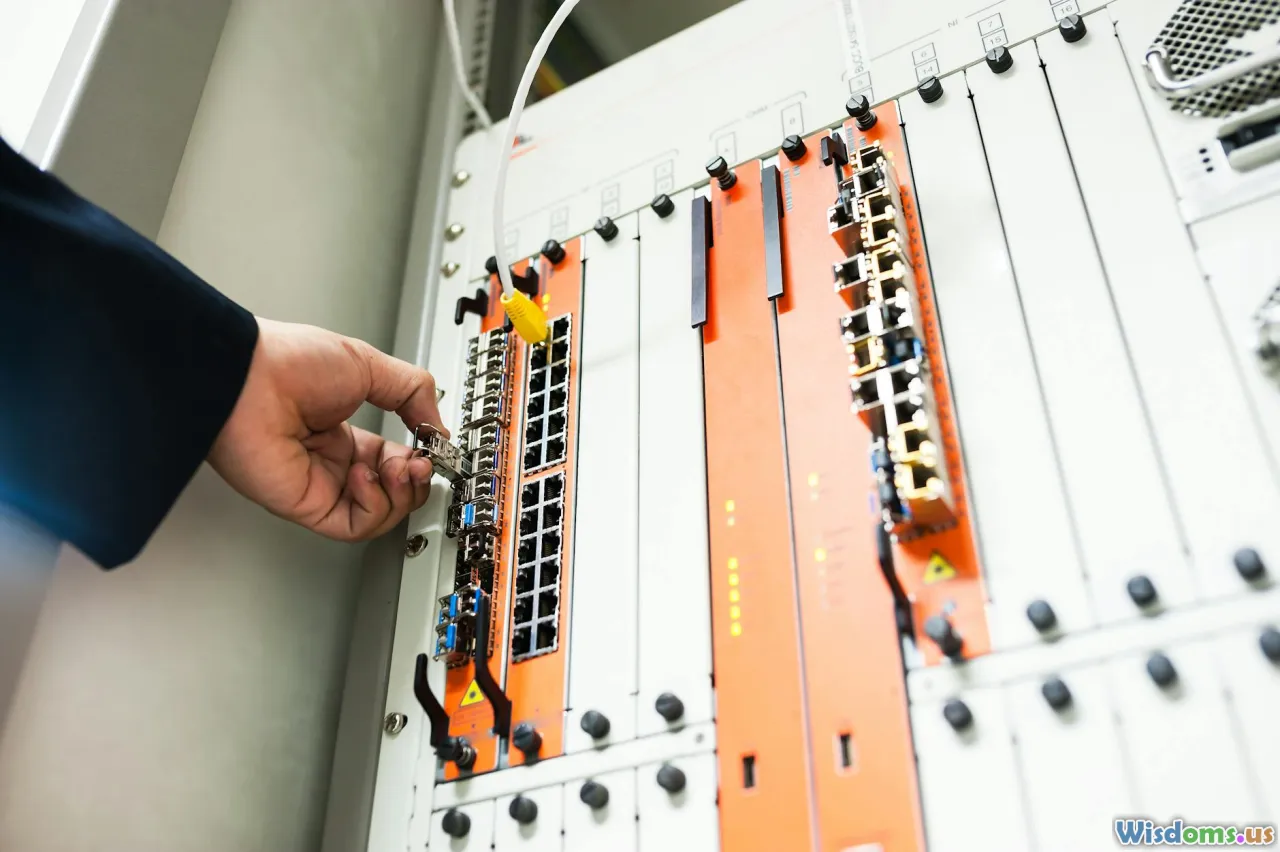
Your WiFi can’t outrun your internet plan, and your modem or ONT can become a hidden bottleneck.
- Speed tiers: If you pay for 300/20, don’t expect gigabit downloads. Verify wired speed first to ensure your ISP is delivering as advertised.
- Modem type: For cable, DOCSIS 3.1 modems are standard for gigabit plans. For fiber, the ONT converts fiber to Ethernet; some ISPs integrate the ONT and router into one box.
- Bridge mode: If you’re adding your own router to an ISP gateway, put the gateway in bridge or pass-through mode to avoid double NAT. If bridge mode isn’t available, configure your router as an access point or accept double NAT (often fine for browsing, but can break some games/remote access).
- CGNAT: Some ISPs use Carrier-Grade NAT; you won’t get a public IPv4. For port forwarding or home lab access, ask for a public IP, use IPv6, or rely on a VPN/tunnel solution.
- Multi-gig WAN: If you have 1–2 Gbps service, ensure your router’s WAN port supports 2.5G or higher and that CPU/firmware can handle it with QoS enabled.
Secure and Segment: Keep Your Network Safe Without Friction

Security matters more as device counts rise.
- Use WPA3-Personal where possible; if some devices fail to join, enable WPA2/WPA3 transition mode temporarily.
- Create a separate guest network with client isolation for visitors. It prevents guest devices from discovering your laptops and NAS.
- Segment IoT: Place smart plugs, bulbs, and cameras on a separate SSID and VLAN if your gear supports it. Many IoT devices only need internet and no access to your personal devices.
- Disable WPS. Use long, random passphrases (at least 16 characters).
- Update firmware quarterly, or enable auto-updates during a maintenance window.
- Consider secure DNS (DNS over HTTPS/TLS) and network-level ad/malware filtering if your router supports it.
- For home offices, use a business-grade VPN to your company or a reputable VPN for secure remote access to your own network.
Pro tip: If you run VLANs, you’ll need a managed switch to carry tagged traffic and a router that supports inter-VLAN routing and firewall rules. Start simple: one main SSID, one guest/IoT SSID. Expand later as needed.
Optimize Placement and Radio Settings for Real-World Gains

Fine-tuning yields big gains—and often costs nothing.
- Router/AP placement: Central, elevated, in open air. Move it away from thick walls, fish tanks, and microwaves.
- Transmit power: Don’t crank it to max. Excess power can cause sticky clients. Aim for balanced coverage among nodes.
- 2.4 GHz: Use 20 MHz channels and pick 1, 6, or 11 based on a quick scan. Avoid 40 MHz due to overlap and interference in most neighborhoods.
- 5 GHz: Start with 80 MHz channels. If interference is high, drop to 40 MHz for stability. Try non-DFS channels (36–48 or 149–161) first; test DFS channels if local radar isn’t a factor.
- 6 GHz: Great for same-room. Use 160 MHz where possible for high-throughput devices; adjust down if you see reliability issues.
- Band steering/Smart Connect: Let the router encourage capable devices onto 5/6 GHz. If some IoT devices refuse to connect, temporarily enable a 2.4 GHz-only SSID for onboarding.
- Roaming aids: Enable 802.11k/v and, if compatible, 802.11r to reduce handoff delays. Many devices benefit from setting a minimum RSSI threshold (e.g., -72 dBm) to encourage roaming.
Example tuning sequence:
- Set 2.4 GHz to 20 MHz on channel 1, 6, or 11. Pick the least crowded by scanning.
- Set 5 GHz to 80 MHz on channels 36–48. If neighbors pack those, try 149–161; if congestion remains, experiment with DFS channels.
- If multiplayer gaming or VoIP is choppy, try lowering to 40 MHz on 5 GHz for better resilience.
- Enable OFDMA, MU‑MIMO, and beamforming features; leave Airtime Fairness on unless a few legacy devices misbehave.
Tame Bufferbloat and Prioritize What Matters (QoS)

Slow downloads aren’t your only enemy—high latency during heavy uploads can ruin calls and games. This often stems from bufferbloat: oversized queues in your router or modem.
How to identify it:
- Run a bufferbloat test (e.g., waveform.com/tools/bufferbloat) while starting a large upload and download. Grade A/B is good; C or worse indicates issues.
Fixes:
- Smart Queue Management (SQM) with FQ_CoDel or CAKE: These algorithms keep queues short and latency low. Many modern routers include them under QoS.
- Set your SQM target speed to about 85–95% of your measured real-world throughput (separately for upload and download) to allow headroom for queue management.
- Use application/device prioritization: Give conferencing devices or work laptops higher priority during business hours.
Example: If your measured upload is 20 Mbps, set SQM upload to 18–19 Mbps. You’ll barely notice the throughput cap but will feel the latency improvement immediately on calls.
Design a Mesh Backhaul Strategy
If you choose mesh, plan where and how nodes will talk to each other.
- Wired backhaul first: If possible, connect mesh nodes via Ethernet or MoCA. It eliminates the backhaul contention and frees up spectrum for clients.
- Tri-band advantage: In wireless backhaul scenarios, tri-band meshes with a dedicated 5 GHz backhaul radio perform better than dual-band systems.
- Placement spacing: Place nodes 30–50 feet apart with at least “good” signal between them (around -65 dBm or better). If a node shows weak backhaul, move it closer—even if it reduces coverage slightly, overall performance will improve.
- Avoid daisy-chaining many nodes: Two or three well-placed nodes beat five nodes tripping over each other. Where possible, connect branches to the primary node to reduce hops.
Tip: After placement, view each node’s backhaul link rate in the app/web UI. If below ~500 Mbps for modern gear, try repositioning or switching channels.
Handle Smart Home and Legacy Devices Gracefully
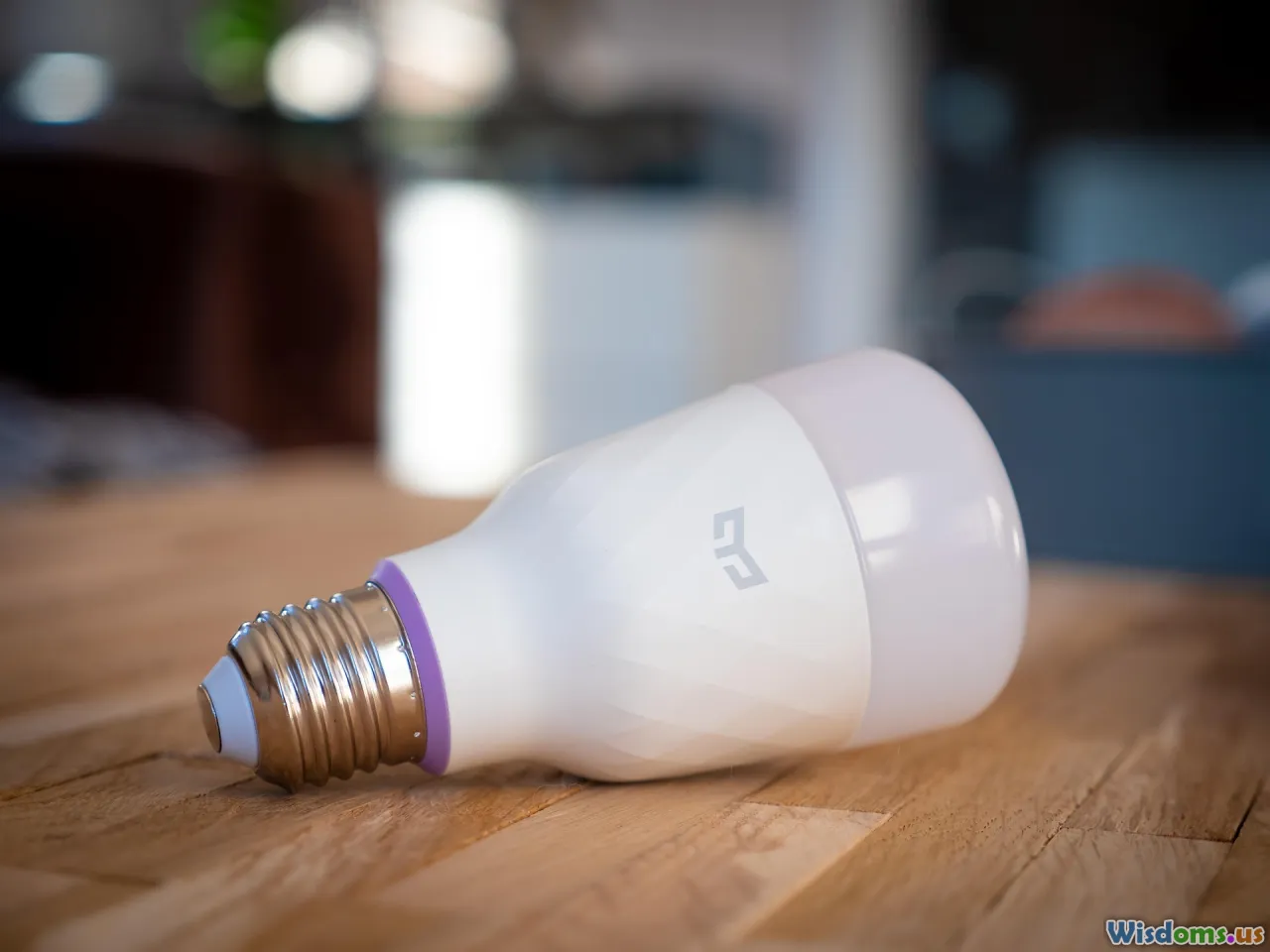
IoT devices can be finicky and often only support 2.4 GHz.
- Separate SSID for IoT: Create an SSID with 2.4 GHz only, using WPA2/WPA3 mixed mode if needed. Keep the password strong.
- Onboarding stubborn devices: Temporarily disable 5 GHz on your main SSID or create a temporary 2.4 GHz-only SSID during setup, then re-enable normal settings.
- Channel width: 2.4 GHz should be 20 MHz only; many IoT chipsets break with 40 MHz.
- Multicast/IGMP: Smart TVs and casting devices may rely on multicast. Enable IGMP snooping on switches/APs if available to reduce broadcast floods.
- Legacy b/g clients: Some routers allow disabling legacy rates to improve airtime efficiency. Test cautiously—very old devices may drop.
Security reminder: Keep IoT segmented from your personal devices if possible. A compromised camera shouldn’t have a route to your laptop.
Validate with Real Tests and Metrics

After upgrading and configuring, re-run your baseline tests.
- Throughput targets: Near an AP, Wi‑Fi 6 devices on 80 MHz 5 GHz should achieve hundreds of Mbps; Wi‑Fi 6E/7 in 6 GHz may exceed 1 Gbps in-room with modern clients.
- Latency: Run a continuous ping during a large upload to see if SQM is working. Latency should stay relatively flat (e.g., 20–40 ms increase, not hundreds).
- Jitter: On video calls, note if speech and video stay in sync during file transfers.
- Roaming: Walk around on a video call. If it drops or freezes at handoff points, tweak roaming settings or adjust AP spacing/power.
A quick validation checklist:
- Dead zones eliminated or greatly reduced.
- Consistent >50 Mbps in typical rooms for 4K streaming and calls; far corners at least >25 Mbps.
- Uploads no longer wreck calls (bufferbloat tamed).
- IoT devices reconnected and stable for 48–72 hours.
Troubleshooting Playbook When Things Go Sideways

Don’t panic—methodical steps usually reveal the culprit.
- Isolate layers: Test wired vs WiFi. If wired is slow, it’s an ISP or router issue. If wired is fine but WiFi is slow, focus on radio settings, placement, or interference.
- Scan channels: Use a WiFi analyzer to check congestion. If neighbors crowd channel 36, move to 149 or a DFS channel.
- Check DFS events: If your 5 GHz keeps switching channels, radar events may be forcing moves. Consider non-DFS channels.
- Client drivers: Update WiFi drivers/OS on laptops; some performance issues come from client-side quirks.
- Band steering issues: Temporarily split SSIDs (separate 2.4 and 5 GHz names) to see if devices behave better; once stable, re-merge with tuning.
- Firmware versions: Roll back if a new update reduces performance; keep notes on versions and behavior.
- Power levels: If APs overlap too strongly, clients may cling to distant APs. Lower transmit power slightly on overlapping radios to encourage roaming.
- Interference from appliances: Microwaves, baby monitors, cordless phones, and Bluetooth can wreck 2.4 GHz. As a test, switch your device to 5/6 GHz or move the AP.
Maintain, Monitor, and Document

Great networks stay great with light upkeep.
- Schedule firmware updates monthly or quarterly, ideally during low-use hours.
- Back up router/AP configurations before changes; keep a copy in the cloud or a password manager.
- Enable basic monitoring: Uptime, client counts, channel utilization. Many ecosystems and routers provide smooth dashboards.
- Label cables and ports. Keep a diagram of your topology (router, switches, APs) and IP reservations.
- Review your SSIDs annually. Decommission old SSIDs and rotate passwords when needed.
- Watch for EOL (end-of-life) notices for your hardware, especially if you rely on security updates.
Budgeting and Upgrade Day Checklist

Break the project into phases and avoid downtime surprises.
Budget planning:
- Prioritize impact: If you can only buy one thing now, it’s often better placement or an additional AP with wired backhaul than the fanciest router.
- Spread costs: Start with a capable router or controller-ready APs; add nodes/APs as needed.
- Consider long-term: Multi-gig ports and PoE-ready infrastructure extend life.
Upgrade day checklist:
- Photograph your current setup and cables.
- Back up configuration files.
- Label cables and note which ports go where.
- Set ISP gateway to bridge mode (if applicable) or plan AP mode for your new router.
- Bring everything to the latest stable firmware before deployment if safe to do so.
- Configure SSIDs, security, and DHCP reservations on the new gear offline if possible.
- Install hardware starting with the router, then switches, then APs/mesh nodes.
- Test wired first, then WiFi near an AP, then across rooms.
- Fine-tune channels and power; verify roaming and backhaul quality.
- Keep the old router handy as fallback for a day or two.
Real-World Scenarios and What Works

Scenario A: 700 sq ft apartment, concrete walls, 300/20 Mbps plan
- Solution: One Wi‑Fi 6/6E router placed in the living space on a shelf, not in a media cabinet.
- Settings: 5 GHz at 80 MHz on channel 36–48, 2.4 GHz at 20 MHz channel 1/6/11. Enable band steering.
- Expected results: 300 Mbps near the router, >150 Mbps in the bedroom, stable video calls.
Scenario B: 2,400 sq ft two-story house, 1 Gbps fiber, many devices
- Solution: Router with 2.5G WAN + two ceiling-mounted PoE APs via Cat6, one per floor.
- Settings: Same SSID on both APs, 802.11k/v enabled, minimum RSSI around -70 dBm. SQM enabled at 900/900 Mbps for low latency.
- Expected results: >500 Mbps everywhere on Wi‑Fi 6 clients; steady calls; no dead zones.
Scenario C: Long townhouse, ISP gateway with limited features
- Solution: Keep ISP gateway for modem/ONT, add your own router in AP mode if bridge mode isn’t available, plus a MoCA link to the far floor feeding a second AP.
- Settings: Separate guest/IoT SSID. 5 GHz 80 MHz channel on each AP with careful channel reuse to avoid co-channel interference.
- Expected results: Two strong coverage zones with consistent handoffs and reduced congestion.
Scenario D: Gamer + remote worker household
- Solution: Mid/high-tier router with strong CPU and SQM, plus one wired AP for upstairs coverage.
- Settings: Device priority for gaming PC and work laptop; 5 GHz at 80 MHz non-DFS channels to avoid radar-triggered drops during matches.
- Expected results: Smooth gameplay and conference calls even during backups.
Advanced Options for Enthusiasts (Optional)
If you like to tinker or have demanding needs, consider:
- VLANs and firewall rules: Separate home lab, work devices, and IoT. Requires a router with VLAN support and a managed switch.
- Controller-based APs: Centralized management, per-AP radio tuning, and detailed analytics.
- Multi-gig core: 2.5/5/10G capable router ports and switches to support high-speed NAS, workstations, or Wi‑Fi 7 backhaul.
- IPv6: Enable and test; many ISPs provide native IPv6. Use proper firewalling.
- Local DNS/DHCP: Run Pi-hole/AdGuard Home for DNS filtering and DHCP reservations; integrate with your router.
Caveat: Advanced features add complexity. Document changes and keep a known-good snapshot to revert quickly.
Future-Proofing: What’s Coming and What Matters Now

Future-proofing is about sensible choices, not chasing buzzwords.
- Wi‑Fi 7 (802.11be): MLO can significantly improve reliability and latency by aggregating links across bands; 320 MHz channels in 6 GHz offer huge throughput for compatible clients. If you buy premium gear today, Wi‑Fi 7 is reasonable for longevity, especially if you already have or plan to get 6 GHz-capable devices.
- 6 GHz ecosystem: More laptops/phones now include 6E/7 radios. Even if range is shorter, the cleaner spectrum is invaluable for congestion relief.
- Multi-gig everything: 2.5G WAN/LAN ports are becoming standard. If your internet plan is near gigabit or you have a fast NAS, multi-gig ports are worth it.
- Cabling once, benefiting for years: Pull Cat6A if you can during renovations. It’s cheap insurance for future speeds and PoE-powered devices.
Focus now on:
- Good placement and wired backhaul where possible.
- A router that can handle your WAN speed with QoS enabled.
- At least one multi-gig port for growth.
- Firmware with security updates and modern features (WPA3, OFDMA, SQM).
Legal and Regional Considerations You Shouldn’t Ignore

- Country code: Set your WiFi country/region correctly. It controls allowed channels and power limits; incorrect settings can cause illegal transmissions and flaky behavior.
- DFS and radar: Some regions heavily utilize DFS channels for weather/aviation radar. If you experience frequent DFS events, move to non-DFS channels.
- EIRP limits: Amplifiers and high-gain antennas can violate EIRP caps. More power isn’t always better and can hurt roaming.
- Apartment rules: Avoid drilling for Ethernet without permission; rely on adhesive raceways or MoCA for neat installs.
Put It All Together: A Step-by-Step How-To

- Map your space: Sketch floors and mark problem areas.
- Baseline: Measure wired and wireless speeds, latency, and signal.
- Pick a path: Single router for small spaces; mesh or wired APs for larger/denser homes.
- Plan backhaul: Prefer Ethernet or MoCA; decide node/AP placements.
- Purchase wisely: Prioritize a capable router, then APs/mesh. Ensure at least one 2.5G port and WPA3.
- Prep configs: SSIDs (Main, Guest/IoT), strong passphrases, DHCP reservations for key devices, SQM/QoS target speeds.
- Install hardware: Router first, then switches, then APs. Keep cabling tidy and labeled.
- Set channels and widths: 2.4 GHz at 20 MHz; 5 GHz at 80 MHz; test DFS/non-DFS; 6 GHz for high-speed local devices.
- Enable features: OFDMA, MU‑MIMO, 802.11k/v/r, band steering, WPA3.
- Validate: iPerf3 and speed tests across rooms; roam tests; bufferbloat check; video call walk tests.
- Iterate: Tweak placement and transmit power, adjust channels, refine roaming thresholds.
- Document: Save configs, update your network map, and note test results.
A well-planned upgrade turns WiFi from a household frustration into invisible infrastructure you don’t think about—because it just works. Start with measurements, favor wired backhaul when possible, choose gear for stability over hype, and give yourself time to test and tune. With those principles, your home network will carry today’s devices smoothly and stand ready for tomorrow’s.
Rate the Post
User Reviews








Popular Posts