
Comparing Pandas and Excel for Exploratory Data Analysis
37 min read A practical comparison of Pandas and Excel for exploratory data analysis, covering speed, scale, visualization, cleaning workflows, reproducibility, and collaboration, with task-based recommendations and real-world usage examples. (0 Reviews)
Pandas vs. Excel for Exploratory Data Analysis: A Practical, Side-by-Side Guide
Exploratory Data Analysis (EDA) is where raw data becomes understanding. It is the messy, iterative phase where you make sense of data structures, detect outliers, test assumptions, and extract the first round of insights that shape hypotheses and business decisions. Two tools dominate this stage in many organizations: Microsoft Excel and the Python Pandas library. Both can get you to answers, but they take very different routes.
This guide compares Pandas and Excel across the tasks that actually matter in EDA: loading data, cleaning and transforming, summarizing, visualizing, collaborating, and documenting your work. It includes concrete, step-by-step examples in both tools, pragmatic tips, and clear recommendations for when to use which.
What EDA means in practice
EDA is less about fancy algorithms and more about building a map of your dataset. Typical tasks include:
- Profiling: identifying column types, unique values, missingness, and distributions.
- Cleaning: fixing headers, trimming whitespace, converting dates, de-duplicating records, harmonizing categories.
- Transforming: filtering, aggregating, pivoting, joining, and enriching data.
- Visualizing: plotting distributions, time series, categorical comparisons, and relationships.
- Hypothesis testing and sanity checks: is the seasonality real? are totals consistent? are there data entry anomalies?
Excel and Pandas both cover these well, but what they optimize for differs. Excel prioritizes immediacy and tactile exploration. Pandas optimizes for scale, repeatability, and composability.
Scale and speed: how far can you push each tool?

- Excel hard limits:
- 1,048,576 rows by 16,384 columns per worksheet. If your CSV has 2 million rows, you will need multiple sheets, the Data Model, or a different tool.
- Calculation speed in Excel depends on formula complexity and volatile functions. PivotTables on a few hundred thousand rows are fine; formulas that spill across hundreds of thousands of cells can lag.
- Power Query and the Data Model:
- Power Query (Get & Transform) can load and transform larger datasets than a sheet can display by using the in-memory columnar engine behind Power Pivot. With proper types and columnar compression, tens of millions of rows are feasible for summaries on modern hardware.
- However, interactivity (scrolling, ad-hoc edits) still hits practical limits when you try to materialize everything on a sheet.
- Pandas memory model:
- Pandas keeps data in-memory on your machine. A 10 million row by 10 column integer dataset can occupy multiple gigabytes once column overhead, indices, and object types are considered.
- You can mitigate memory with downcasting dtypes, selecting only needed columns, chunked reading, or out-of-core frameworks like Dask or Polars.
- Practical rule of thumb:
- If you need tactile exploration under ~500k rows or you already have the dataset living in Excel/SharePoint, Excel is the fastest way to tactile answers.
- If you expect repeated runs, large joins, or multi-gigabyte datasets, Pandas (or columnar alternatives) will give you room to grow and scriptable repeatability.
Tip: Many teams use both. Power Query for import/cleanup and a PivotTable for quick inspection; then export a clean parquet/CSV and do heavier EDA in Pandas for modeling or complex grouping.
Getting data in: import fidelity and control

- Excel options:
- From Text/CSV: Excel guesses types and lets you transform in Power Query before load. You can set delimiter, encoding, data types, and row sampling.
- From Table/Range: promote headers, define a structured table for reliable references and formulas.
- From Database: connectors for SQL Server, Oracle, MySQL; from cloud sources via OData and SharePoint; from web.
- Power Query preserves steps as an applied transformation pipeline in M language; you can inspect it in the Advanced Editor.
- Pandas options:
- Flexible readers: read_csv, read_excel, read_sql, read_parquet, read_json, read_html, read_xml.
- Fine-grained control: parse_dates, dtype mapping, usecols, na_values, compression, encoding.
- Example with strong typing and date parsing:
import pandas as pd

orders = pd.read_csv(
    'orders.csv',
    usecols=['order_id', 'customer_id', 'order_date', 'amount', 'status'],
    dtype={'order_id': 'int64', 'customer_id': 'int32', 'status': 'category'},
    parse_dates=['order_date'],
    na_values=['', 'NA', 'null']
)
- Fidelity pitfalls to watch:
- Excel may auto-convert strings that look like dates or numbers (for example, gene symbol SEPT2 turning into a date). Use Power Query to explicitly type columns as text on import, or prefix entries with an apostrophe in a sheet to preserve text.
- Pandas’ default type inference can create object dtype columns for mixed types, which are slower. Provide explicit dtypes or use convert_dtypes.
Power Query M sample for explicit typing on import:
let
  Source = Csv.Document(File.Contents("C:\\data\\orders.csv"),[Delimiter=",", Columns=5, Encoding=65001, QuoteStyle=QuoteStyle.Csv]),
  PromoteHeaders = Table.PromoteHeaders(Source, [PromoteAllScalars=true]),
  ChangeTypes = Table.TransformColumnTypes(PromoteHeaders,{
      {"order_id", Int64.Type},
      {"customer_id", Int64.Type},
      {"order_date", type date},
      {"amount", type number},
      {"status", type text}
  })
in
  ChangeTypes
Cleaning and typing data: getting columns you can trust

Common tasks and how they map in each tool:
- Trimming whitespace and fixing case:
- Excel: use TRIM, CLEAN, LOWER/UPPER, or do it once in Power Query with Text.Trim and Text.Proper.
- Pandas: str methods are vectorized and fast.
customers['email'] = customers['email'].str.strip().str.lower()
- Converting dates:
- Excel: VALUE, DATE, or Power Query’s type conversion; watch out for locale differences and the 1900 date system quirk (Excel includes a non-existent 29-Feb-1900 for historical compatibility with Lotus 1-2-3).
- Pandas: pd.to_datetime with format or errors handling.
orders['order_date'] = pd.to_datetime(orders['order_date'], errors='coerce')
- Handling missing values:
- Excel: blanks vs NA; conditional formatting to spot them; use IFERROR, ISBLANK, or Power Query’s Replace Errors and Fill.
- Pandas: isna, fillna, dropna with fine control per column.
orders['amount'] = orders['amount'].fillna(0.0)
# or drop rows with missing critical identifiers
orders = orders.dropna(subset=['customer_id'])
- Categorical harmonization:
- Excel: use Data Validation lists to enforce allowed values; Power Query for Replace Values and mapping tables.
- Pandas: map, replace, and categorical dtype to reduce memory and enforce categories.
status_map = {'Complete': 'complete', 'COMPLETE': 'complete', 'Pending': 'pending'}
orders['status'] = orders['status'].replace(status_map).astype('category')
- De-duplication:
- Excel: Remove Duplicates on a Table; Power Query’s Remove Duplicates on selected keys.
- Pandas: drop_duplicates with subset.
orders = orders.drop_duplicates(subset=['order_id'])
Small but powerful Excel features for EDA:
- Dynamic arrays: FILTER, UNIQUE, SORT, and SEQUENCE let you build lightweight queries without VBA.
- LET and LAMBDA: name sub-expressions and encapsulate repeatable logic into reusable spreadsheet functions.
Pandas extras that help:
- astype for precise typing; to_numeric with errors='coerce' to force numeric.
- pd.Categorical for memory reduction and controlled categories.
Grouping, summarizing, and pivoting

Summaries are the heart of EDA. Excel and Pandas provide similar capabilities with different ergonomics.
-
Excel PivotTable:
- Drag fields to Rows, Columns, Values, and Filters; right-click to summarize by sum, count, mean, etc.
- Group by date bins (months, quarters), set number formats, add slicers for interactivity.
- Works wonderfully for quick slice-and-dice and shareable snapshots.
-
Pandas groupby and pivot_table:
# total revenue by month and status
orders['month'] = orders['order_date'].dt.to_period('M')
rev = (orders
       .groupby(['month', 'status'])['amount']
       .sum()
       .unstack(fill_value=0))

# Equivalent with pivot_table
rev2 = pd.pivot_table(orders,
                      index='month',
                      columns='status',
                      values='amount',
                      aggfunc='sum',
                      fill_value=0)
- Running totals and window ops:
- Excel: use SUM over expanding ranges or the newer dynamic arrays with SCAN; Power Query has Group By and custom columns.
- Pandas: expanding and rolling windows.
orders = orders.sort_values('order_date')
orders['cum_amount'] = orders['amount'].cumsum()
- Percent of total and contributions:
- Excel: show values as % of Column Total in PivotTable; create calculated fields.
- Pandas:
rev_by_status = orders.groupby('status')['amount'].sum()
rev_pct = (rev_by_status / rev_by_status.sum()).sort_values(ascending=False)
Where Pandas shines: chaining transformations for multi-step summaries, programmatic feature engineering, and reproducibility. Where Excel shines: ad-hoc pivoting, quick eyeballing, and stakeholder-friendly sharing.
Visualizing distributions and relationships
-
Excel visualization strengths:
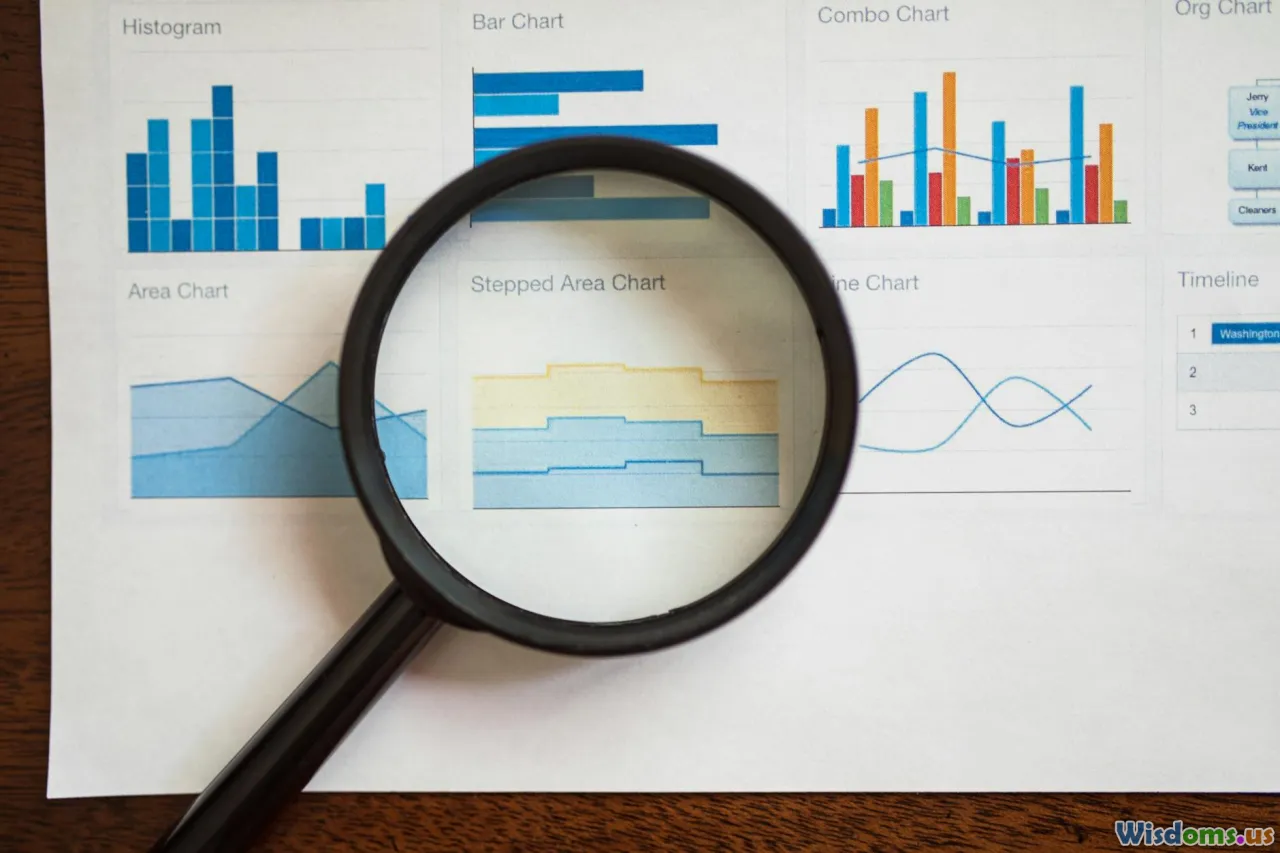
- Column, line, scatter, histogram, box-and-whisker (Office 365), waterfall, Pareto, and PivotCharts.
- Conditional formatting, icon sets, data bars, heat maps over tables for quick outlier detection.
- Slicers for interactive filtering; quick layout and labeling options.
-
Pandas and Python stack:
- pandas.DataFrame.plot for quick charts using Matplotlib backend.
- Seaborn for statistically-informed defaults: histplot, boxplot, violinplot, scatterplot with hue/size, pairplot for automatic relationships overview.
- Plotly or Altair for interactive visuals with tooltips and brushing.
Example: numeric distribution and categorical comparison in Pandas
import seaborn as sns
import matplotlib.pyplot as plt

# Distribution
sns.histplot(orders['amount'], bins=50, kde=True)
plt.title('Order Amount Distribution')
plt.xlabel('Amount')
plt.ylabel('Count')
plt.show()

# Boxplot by status
sns.boxplot(data=orders, x='status', y='amount')
plt.title('Amount by Status')
plt.show()
Excel counterpart:
- Insert a histogram chart on the amount column; adjust bin width in Format Axis.
- Insert a box and whisker chart by selecting the amount and status columns in a table (available in modern Excel), or create PivotTable with status in Axis and amount summarized, then Insert PivotChart.
If you need publication-quality plots, reproducibility across reruns, and programmatic control, the Python stack is typically superior. For executive-ready dashboards that must live in a workbook, Excel charts with consistent styles and labels are still an unbeatable quick win.
Reproducibility, auditability, and documentation

-
Excel approaches:
- Power Query steps are saved and visible; you can inspect M code and re-run transformations on refreshed data.
- Named ranges, structured references, and consistent worksheet layout create a human-readable flow.
- LET and LAMBDA make formula logic self-contained and reusable.
- But ad-hoc cell edits are hard to track; what-if changes can creep in. Workbook versioning helps but is not fine-grained.
-
Pandas approaches:
- EDA in notebooks captures code, output, and narrative in one file. Export to HTML, PDF, or share on Git.
- Version control diffs show exactly what changed in code and, with tools like nbdime, in notebooks.
- You can unit test utility functions, parameterize pipelines, and schedule automated runs.
Practical tips:
- Keep a ReadMe sheet in Excel summarizing assumptions, data sources, and key transforms; add a Data Dictionary sheet.
- In notebooks, top-load a Summary cell with the data source path, date of extract, and key filters. Use environment variables or config files to avoid hardcoding secrets.
- For both tools, keep raw data read-only and do not overwrite source files during EDA.
Interactivity and collaboration

-
Excel strengths:
- Real-time co-authoring in Microsoft 365, comments, and easy distribution over email or SharePoint.
- Slicers on PivotCharts make live exploration accessible to non-technical users.
- Cell-level interactivity is still the most approachable medium for many business users.
-
Pandas ecosystem:
- Jupyter notebooks hosted on shared hubs or cloud platforms enable collaborative coding.
- Streamlit, Dash, and Panel can turn EDA outputs into interactive web apps quickly.
- Notebooks and apps require minimal setup for viewers when deployed, but stakeholders often prefer familiar Excel artifacts for day-to-day decisions.
A pragmatic team often delivers initial results in Excel for accessibility while maintaining a Pandas notebook pipeline behind the scenes for repeatable refreshes and deeper analysis.
Advanced analysis: stats and modeling hooks

-
Excel capabilities:
- Analysis ToolPak for descriptive stats, regression, moving averages, ANOVA; Solver for optimization; scenario and sensitivity tools.
- Add-ins extend capabilities; Power BI integration for richer visuals beyond the workbook.
- Python in Excel (Microsoft 365, supported SKUs) lets you run Python code, including Pandas, inside cells and formulas, bridging both worlds for EDA.
-
Pandas and Python libraries:
- SciPy and statsmodels for hypothesis tests, time series decomposition, GLMs.
- scikit-learn for preprocessing, feature engineering, and modeling; imbalanced-learn for sampling.
- Prophet or statsmodels for time series; shap for explainability.
EDA often stops short of full modeling, but having these tools a single import away makes Pandas the natural springboard when your exploratory questions become predictive.
Data quality checks and validation

-
Excel techniques:
- Data Validation to restrict inputs; conditional formatting to highlight anomalies.
- Power Query’s Keep Errors, Remove Errors, and Column Quality indicators (valid, error, empty) help spot issues.
- Build control totals and reconcile sheets to catch drift.
-
Pandas techniques:
- Assertions and custom checks:
assert orders['amount'].ge(0).all(), 'Negative amounts found'
assert orders['order_id'].is_unique, 'Duplicate order_id values detected'
- Repeatable profiling with ydata-profiling (formerly pandas-profiling) or skimpy to produce summary reports.
- Great Expectations to codify data expectations and produce validation documentation.
Good EDA practice is to save a log of checks performed and failures found, regardless of tool. That record becomes gold later when you explain results.
Security, governance, and compliance

-
Excel:
- Workbook protection, sheet protection, and file-level encryption with passwords; IRM policies in enterprise environments.
- When using Power Query, credentials for data sources are stored in the workbook/local profile; secure them and avoid embedding secrets in M code where possible.
-
Pandas/Python:
- Secrets should be in environment variables or secure credential stores; do not commit them to version control.
- Notebooks can accidentally capture data in outputs; scrub before sharing. Use data masking when necessary.
For both, align EDA practices with data classification policies, and prefer working on de-identified or sampled datasets when possible.
Costs and environment setup

- Excel requires Microsoft 365 licensing; most business users already have it.
- Pandas is open source and free. The cost is in environment setup and maintenance: Python installation, library versions, and possibly VS Code or Jupyter setup. Managed platforms or containers ease this.
- For larger data, consider the cost of RAM and compute. Pandas scales up with machine memory; Excel leverages the local machine and, through Power Query, can still benefit from the columnar engine’s compression.
Common workflow recipes

-
Rapid stakeholder exploration (small to medium data):
- Import CSV via Power Query with explicit types.
- Remove duplicates, split columns, trim text, fix dates in Power Query.
- Load to Data Model and build PivotTables for key metrics with slicers.
- Add charts and a simple KPI sheet.
-
Repeatable weekly EDA with larger data:
- Create a Pandas notebook that reads from source with explicit dtypes and parse_dates.
- Encapsulate transformations in functions; add assertions for quality checks.
- Generate summary tables and plots; export a clean CSV and a slim Excel workbook for stakeholders.
- Commit to Git; schedule with a simple job/CI if needed.
-
Hybrid:
- Use Power Query to pull and pre-clean data from enterprise sources.
- Export to parquet from Power BI Desktop or via Python connectors.
- Perform deeper EDA in Pandas; write back highlights to Excel with openpyxl or xlsxwriter for presentation.
A worked example: same EDA in Excel and Pandas

Assume two files:
- customers.csv with columns: customer_id, signup_date, region, segment, email
- orders.csv with columns: order_id, customer_id, order_date, amount, status
Goal: profile the data, clean types, compute monthly revenue by segment and region, identify top 10 customers by lifetime value, and visualize amount distribution.
Excel path (Power Query + PivotTable):
- Data tab → Get Data → From Text/CSV → import both files separately.
- In Power Query for customers:
- Promote headers, set types: customer_id as whole number, signup_date as date, region/segment/email as text.
- Trim text for email; lowercase via Transform → Format → Lowercase.
- Remove duplicates on customer_id.
- Close & Load To… → Only Create Connection.
- In Power Query for orders:
- Set types: order_id whole number, customer_id whole number, order_date date, amount decimal, status text.
- Replace errors in amount with 0.0.
- Filter out rows with null customer_id.
- Add column Month = Date.MonthName([order_date]) & Date.Year([order_date]) or use a proper date key column.
- Close & Load To… → Only Create Connection.
- Create a query that merges orders with customers on customer_id (Home → Merge Queries), keep region and segment.
- Load the merged table to the Data Model.
- Insert PivotTable based on Data Model:
- Rows: Month
- Columns: Segment
- Filters: Region, Status
- Values: Sum of Amount; add Count of Order ID for volume.
- Insert a second PivotTable:
- Rows: Customer ID
- Values: Sum of Amount (sort descending); show top 10 using Value Filters → Top 10.
- Optionally add email and segment as detail fields.
- Visualize:
- Insert a histogram chart on amount from the merged table.
- Add slicers for Region and Status on the revenue PivotChart.
- Save and document steps in a ReadMe sheet; refresh updates everything.
Pandas path (Jupyter notebook):
import pandas as pd
import seaborn as sns
import matplotlib.pyplot as plt

# 1) Load with typing
customers = pd.read_csv('customers.csv',
                        dtype={'customer_id': 'int64', 'region': 'string', 'segment': 'string', 'email': 'string'},
                        parse_dates=['signup_date'])
orders = pd.read_csv('orders.csv',
                     dtype={'order_id': 'int64', 'customer_id': 'int64', 'status': 'category'},
                     parse_dates=['order_date'])

# 2) Clean
customers['email'] = customers['email'].str.strip().str.lower()
customers = customers.drop_duplicates(subset=['customer_id'])
orders = orders.dropna(subset=['customer_id'])
orders['amount'] = pd.to_numeric(orders['amount'], errors='coerce').fillna(0.0)

# 3) Enrich
orders['month'] = orders['order_date'].dt.to_period('M').dt.to_timestamp()

# 4) Join
df = orders.merge(customers[['customer_id', 'region', 'segment']], on='customer_id', how='left')

# 5) Summaries
monthly = (df.groupby(['month', 'segment'])['amount']
             .sum()
             .reset_index()
             .pivot(index='month', columns='segment', values='amount')
             .fillna(0))

ltv = (df.groupby('customer_id')['amount']
         .sum()
         .sort_values(ascending=False)
         .head(10))

# 6) Visuals
sns.histplot(df['amount'], bins=50, kde=True)
plt.title('Order Amount Distribution')
plt.show()

plt.figure(figsize=(10,4))
monthly.plot(kind='line')
plt.title('Monthly Revenue by Segment')
plt.ylabel('Revenue')
plt.show()

# 7) Sanity checks
assert df['amount'].ge(0).all(), 'Negative amounts found'
assert orders['order_id'].is_unique, 'Duplicate order ids'

# 8) Export stakeholder-friendly output
monthly.to_excel('monthly_revenue_by_segment.xlsx', sheet_name='monthly')
ltv.to_frame('lifetime_value').to_excel('top10_ltv.xlsx')
Observations:
- Both workflows are fast and repeatable once set up. Excel provides easier drag-and-drop pivots; Pandas gives absolute control and simpler multi-step transformations.
- The Pandas notebook doubles as documentation; the Power Query steps do the same inside Excel.
Tips, pitfalls, and edge cases that matter

- Excel auto-conversion:
- Beware gene names, postal codes, IDs with leading zeros; import as text or with Power Query and set types explicitly.
- Significant digits and precision:
- Excel stores up to 15 significant digits; long identifiers can be truncated visually. Treat them as text to preserve integrity.
- Date systems:
- Excel’s 1900 date system includes a non-existent February 29, 1900. For historical dates close to 1900, prefer Power Query’s date type handling or Pandas to_datetime with exact format.
- Pandas object dtype:
- Mixed-type columns default to object dtype and can slow operations. Use convert_dtypes or explicit astype.
- Memory blowups in Pandas:
- Joining large frames with high-cardinality keys can exceed RAM. Select only necessary columns before merges; consider categoricals; use chunking; or try parquet+DuckDB for intermediate aggregations.
- Duplicate keys:
- Both tools allow accidental duplication on joins if you do many-to-many merges unintentionally. In Pandas, validate='one_to_one' in merge helps catch this.
df = orders.merge(customers, on='customer_id', how='left', validate='many_to_one')
- Locale issues:
- Decimal separators and date formats vary by locale in Excel. In Pandas, specify decimal=',' in read_csv when needed.
- Refresh logic:
- In Excel, define query parameters (for example, a date range) so refreshes behave as expected; document assumptions. In Pandas, centralize constants at the top of the notebook.
Hybrid workflows: getting the best of both

- Python in Excel:
- Use Python formulas to run Pandas inside a worksheet, bringing vectorized cleaning, groupby, and plots into Excel without leaving the workbook.
- Ideal when teams want Python power with Excel distribution.
- Write to Excel from Pandas:
- xlsxwriter or openpyxl can create nicely formatted sheets, charts, and tables as deliverables.
with pd.ExcelWriter('eda_report.xlsx', engine='xlsxwriter') as writer:
    monthly.to_excel(writer, sheet_name='Monthly')
    ltv.to_frame('LTV').to_excel(writer, sheet_name='Top10')
- Read from Excel into Pandas:
- read_excel supports sheet names and usecols; use engine='openpyxl' for .xlsx.
- Power Query + parquet + Python:
- Export Power Query outputs to parquet and load in Pandas for better types and speed. Parquet preserves schema and is columnar, making downstream EDA snappier.
When to choose Excel vs. Pandas: a decision guide

Choose Excel when:
- Your dataset fits comfortably within a worksheet or the Data Model, and stakeholders need to interact with pivots and slicers.
- You need to prototype quickly with minimal setup and share via familiar tools.
- The analysis is exploratory and presentation-oriented rather than part of an automated pipeline.
Choose Pandas when:
- You need reproducibility and code-based documentation; the EDA will evolve into an automated or scheduled process.
- The dataset is large, you must join multiple sources programmatically, or you need advanced statistics and plots.
- You care about versioning, testing, and integrating with the broader Python ecosystem.
Use both when:
- You want the tactile exploration of Excel and the scalability of Pandas.
- You need to present results in Excel but ensure the underlying steps are scripted and testable.
Practical performance strategies for each tool

Excel:
- Keep data in Tables; avoid whole-column formulas when not needed.
- Use Power Query for heavy lifting, not nested cell formulas across hundreds of thousands of rows.
- Load to the Data Model and build PivotTables for speed instead of dumping millions of rows onto a sheet.
- Turn off automatic calculation during large paste operations; recalc after.
Pandas:
- Read only necessary columns with usecols; enforce dtypes at read time.
- Downcast numeric types:
orders['amount'] = pd.to_numeric(orders['amount'], downcast='float')
- Avoid apply row-wise for large frames; prefer vectorized operations or cythonized functions.
- For extremely large CSVs, process in chunks and aggregate incrementally.
total = 0.0
for chunk in pd.read_csv('orders.csv', usecols=['amount'], chunksize=500_000):
    total += chunk['amount'].sum()
- Consider columnar formats (parquet) and DuckDB/Polars for heavy group-bys.
Real-world collaboration patterns

- Analytics-to-business handoff:
- Run EDA in Pandas, export a curated dataset and a compact Excel workbook with pivots and charts. Provide a short one-pager explaining filters and the refresh process.
- Business-to-analytics intake:
- Receive an Excel workbook with initial pivots and questions. Replicate transformations in Pandas with tests, then iterate deeper.
- Governance:
- Store workbooks and notebooks in a shared repository with naming conventions; tag versions with data extract dates. Keep a data dictionary that covers both.
A few facts to ground your choices

- Excel worksheet row limit: 1,048,576 rows; Data Model supports more via compressed columnar storage.
- Excel uses a 1900 (or 1904 on Mac if configured) date system with a known 1900 leap-year compatibility bug.
- Excel formulas display up to 15 significant digits reliably; treat long numeric identifiers as text.
- Pandas operates in-memory; available RAM is the practical ceiling. Explicit dtypes and parquet reduce footprint significantly.
- ydata-profiling can auto-generate an EDA report in minutes; Great Expectations can turn your EDA checks into a test suite.
- Modern Excel features like dynamic arrays, LET, LAMBDA, and Power Query make spreadsheet EDA far more robust than legacy approaches with scattered formulas.
Final thoughts

The right tool for EDA is rarely a matter of ideology. Excel is unmatched for tactile, stakeholder-facing exploration; Pandas is unmatched for scalable, scripted, and testable workflows. If your day-to-day questions are small-to-medium and collaborative in nature, Excel gets you to insight with minimal friction. If your questions require repeated runs, strict lineage, or heavy joins and statistics, Pandas will save time and reduce errors over the life of the project.
Most productive teams use both. Start where you are, adopt the strengths of each, and build workflows that turn exploratory curiosity into reliable, repeatable insight. When your next dataset arrives, you will know exactly which path to start with—and how to bridge to the other when the questions get bigger.
Rate the Post
User Reviews









Popular Posts